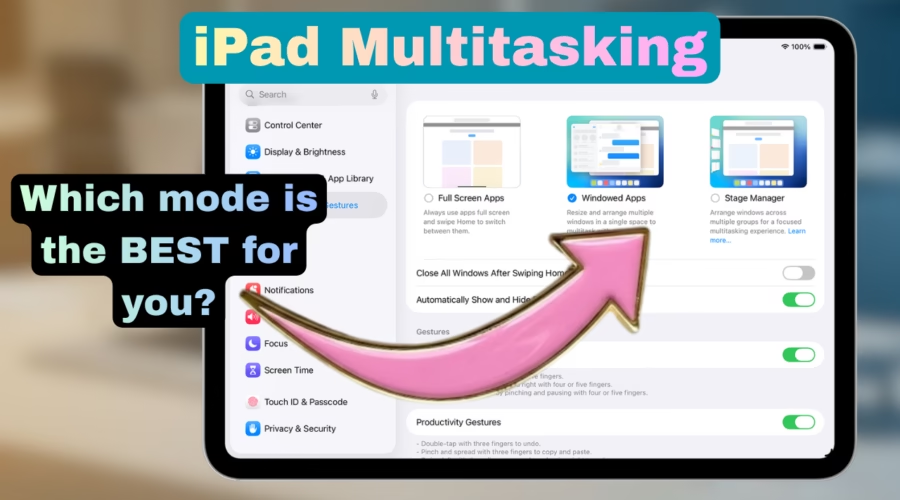
The iPadOS 26 update has fundamentally changed the way we use our iPads. By retiring the “three-dot” multitasking menu and introducing the Liquid Glass design language, Apple has moved toward a more desktop-like windowing system.
If you are struggling to decide between Full Screen, Windowed Apps, or Stage Manager, this guide will help you find the perfect setup for your iPad and use case.
1. Full Screen Apps: The Distraction-Free Classic
Full Screen is the traditional iPad experience. One app occupies the entire display, keeping your focus singular and your battery life optimized.
- Best for: Students taking focused notes, digital artists using Procreate, or reading in the Kindle app.
- Verdict: If you don’t need to reference other apps while you work, stick with this. It’s the cleanest way to use your iPad without accidentally triggering window resizes.
- Pro Tip: Only this mode supports bottom corner swipe finger gestures, which lets you take screenshot or open Quick Note. With Windowed Apps and Stage Manager, this feature is only supported with an Apple Pencil and not with finger swipe.
2. Windowed Apps: The “Sweet Spot” for Productivity
The most significant addition to iPadOS 26 is Windowed Apps mode. This introduces a Mac-like experience where apps become freely resizable windows with “traffic light” controls (Red to close, Yellow to minimize, Green to maximize).
- Best for: Users with smaller iPads (e.g. iPad Mini) or for users (such as students) who need a simple side-by-side view.
- Why it wins: Stage Manager’s side dock takes up too much real estate. Windowed Apps mode lets you flick two apps to the edges for a perfect 50/50 split while utilizing every inch of the display.
- Pro Tip: iPadOS 26 now remembers your layouts. If you set up a specific window size for Safari and Goodnotes, they will snap back to those exact positions the next time you open them.
3. Stage Manager: For the Power Multitasker
Stage Manager is designed for “Context Switching.” It organizes your apps into “Stages” (workspaces) and keeps a list of recent app groups on the left side of the screen.
- Best for: Base iPads, iPad Air, or iPad Pros users and those connected to External Displays.
- The Reality Check: While powerful, Stage Manager is overkill if you only use two apps side-by-side. The side strip and dock can make a 10.9-inch screen feel cramped.
- When to use it: Use Stage Manager if you are jumping between entirely different projects—for example, switching from a “Work Set” (Slack + Outlook) to an “Entertainment Set” (YouTube + Reddit).
The Best Feature: One-Tap Split Screen
Whether you opt for Windowed Apps or Stage Manager, If you frequently use the same two apps together, stop setting them up manually. You can automate this using the Shortcuts app:
- Open Shortcuts and create a new shortcut.
- Add the “Split Screen 2 Apps” action.
- Select your two apps (e.g., Goodnotes and Safari).
- Add the shortcut to your Home Screen. One tap will now launch both apps in your preferred split-screen layout instantly.
- You can create any number of 1-tap shortcuts for different app combinations.
Using All 3 Modes?: Here’s Another Cool Shortcut
- Open the Control Center on your iPad
- Tap & Hold > Add a Control > Search and Add ‘Multitasking’
- Now, you can easily switch between Full Screen Apps, Windowed Apps & Stage Manager right from your Control Center