Typing on the Apple iPad without an external keyboard can feel slow and frustrating for many users. However, built-in features within iPadOS allow users to significantly improve typing speed and efficiency without installing additional apps.
These hidden keyboard tools, available across most iPad models, focus on reducing unnecessary taps, improving cursor control, and offering flexible typing layouts.
Double Space Shortcut Speeds Up Punctuation
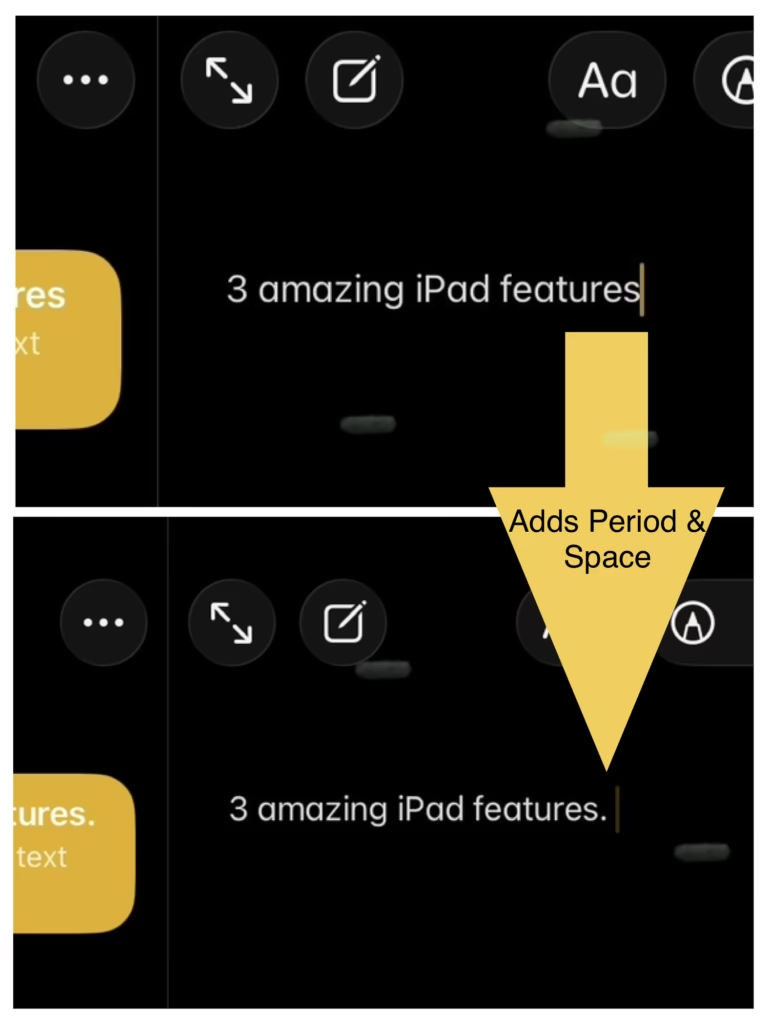
One of the simplest yet most effective features is the double space shortcut for adding a period.
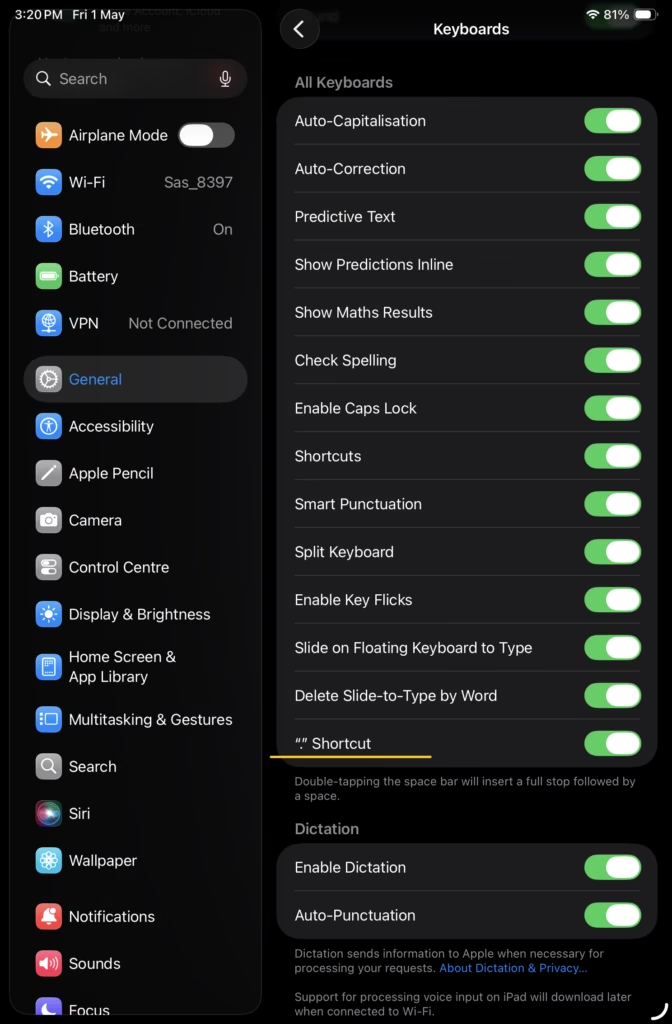
Usually, this setting is enabled by default. But if not, users can enable this by navigating to Settings, then General, and selecting Keyboard. Once the “.” shortcut is turned on, double tapping the spacebar automatically inserts a period followed by a space.
This eliminates the need to switch keyboard layouts to access punctuation, making it particularly useful for writing messages, emails, and notes. Over time, the feature reduces repetitive actions and speeds up overall typing.
Turn the Keyboard Into a Trackpad
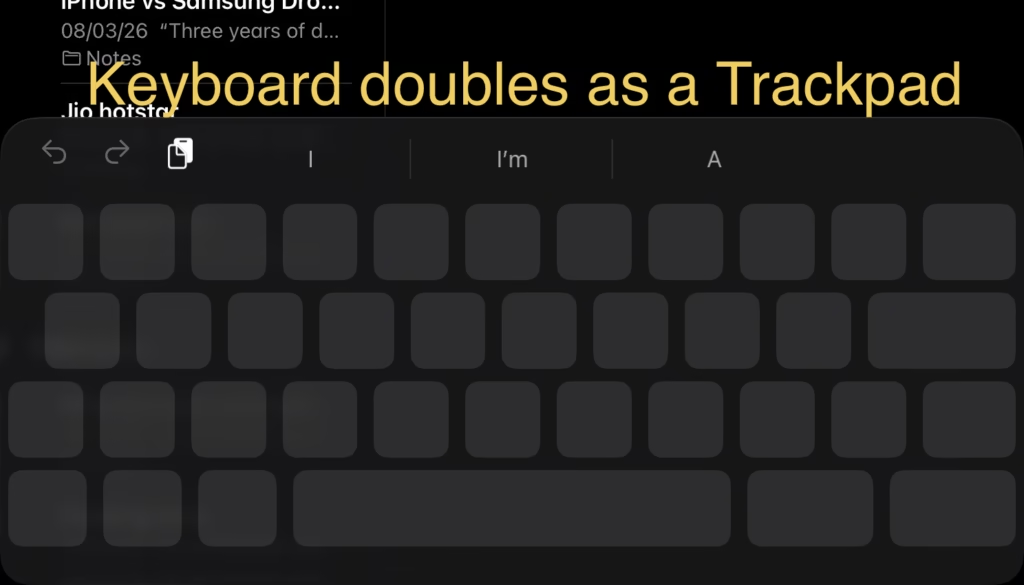
The iPad keyboard also doubles as a trackpad, offering precise cursor control.
By tapping and holding the spacebar, the entire keyboard transforms into a trackpad. Users can then move the cursor smoothly across text, making it easier to edit sentences or fix mistakes.
This feature is especially useful for longer documents where placing the cursor accurately using touch can be difficult. It reduces frustration and improves editing efficiency, particularly on devices like the base iPad, iPad Air, and iPad Pro.
The above 2 features (double space and trackpad) work exactly the same way on iPhone, if you have one.
Flexible Keyboard Layouts Improve Comfort
iPadOS also allows users to customize the keyboard layout based on how they use their device.
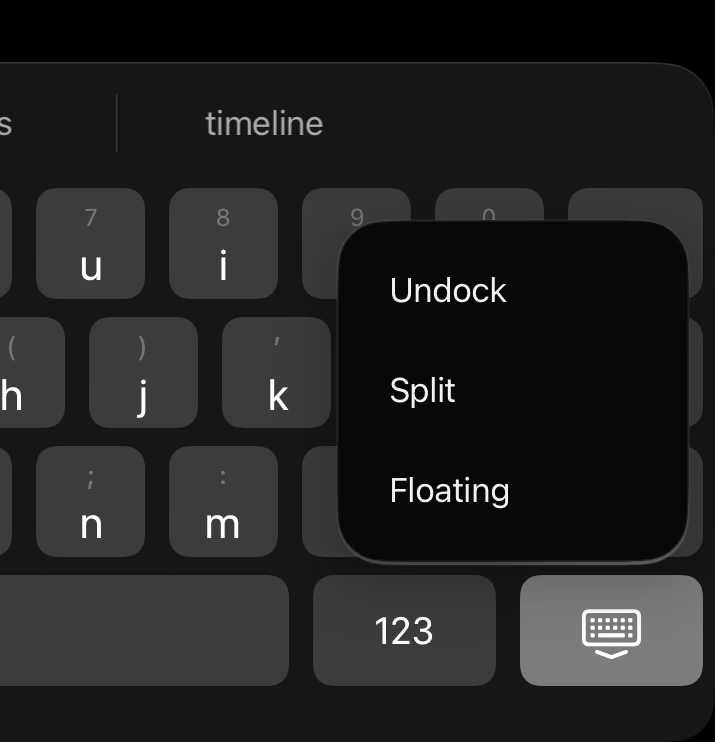
By tapping and holding the keyboard icon in the bottom-right corner, users can choose from multiple options:
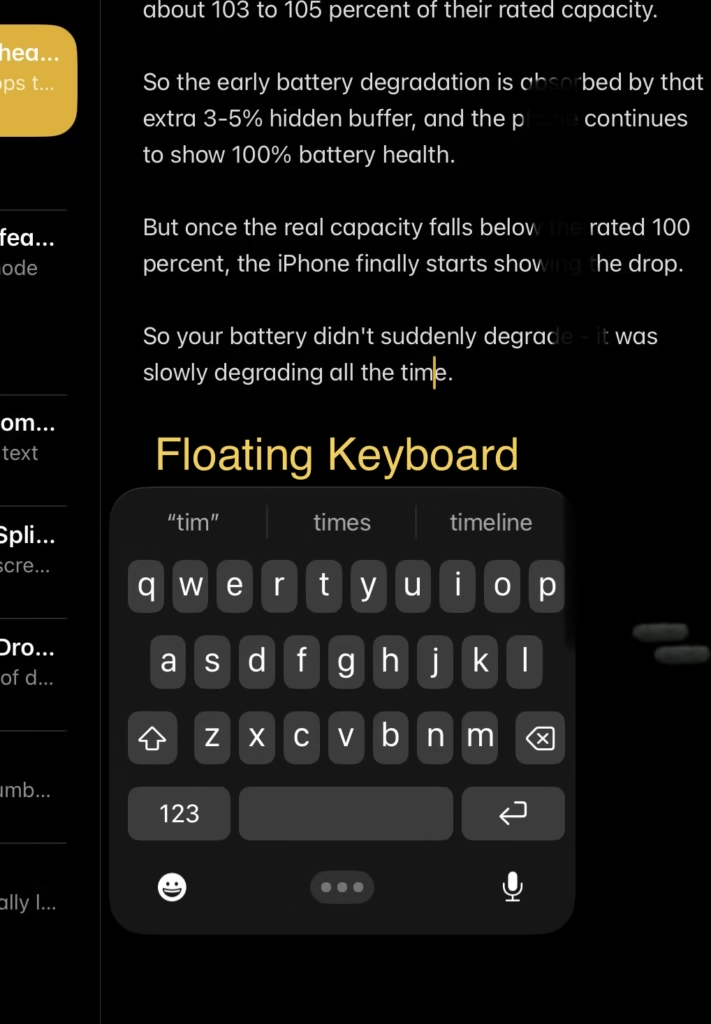
- Floating keyboard for one-handed typing. You can drag the floating keyboard from the 3 dots icon to reposition it.
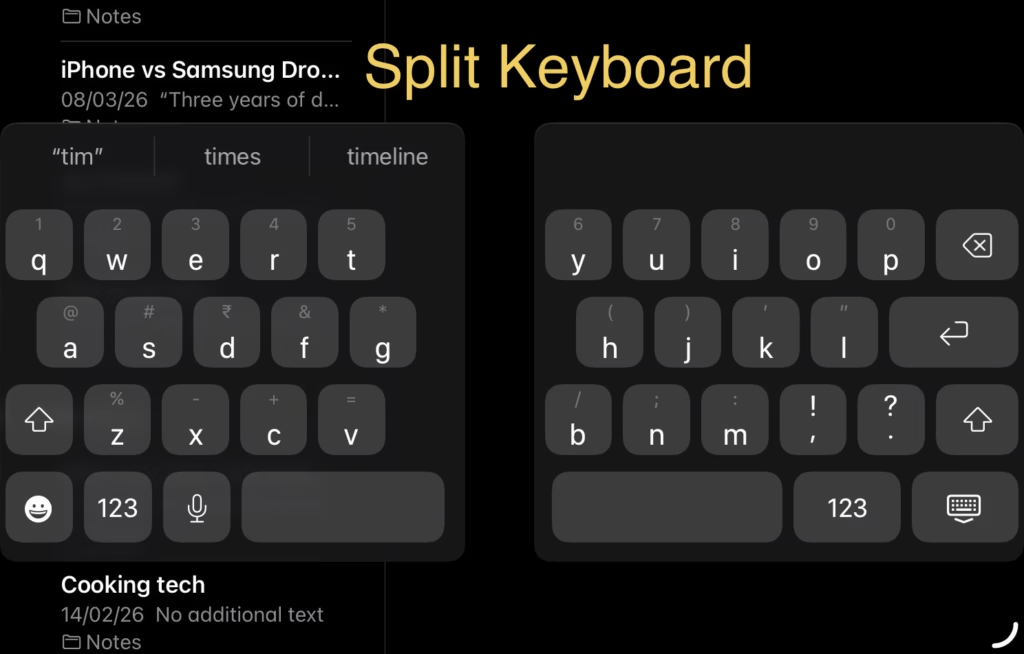
- Split keyboard for thumb typing while holding the device
- Undocked keyboard to reposition it higher on the screen
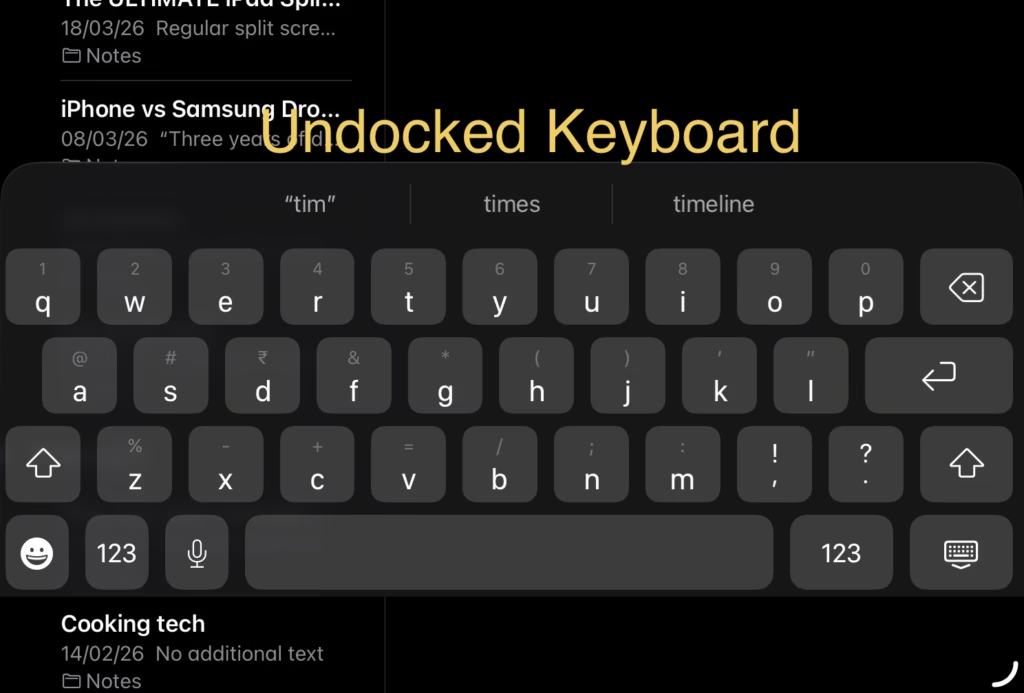
These layout options make typing more ergonomic, whether the user is sitting, multitasking, or holding the iPad in different positions.
While each feature may seem minor individually, together they significantly improve typing speed and usability. They reduce unnecessary gestures, improve precision, and adapt the keyboard to different usage scenarios.
Many users remain unaware of these built-in tools, despite them being available across iPadOS for years. As more people rely on tablets for productivity tasks, such optimizations can enhance the overall user experience without additional hardware.