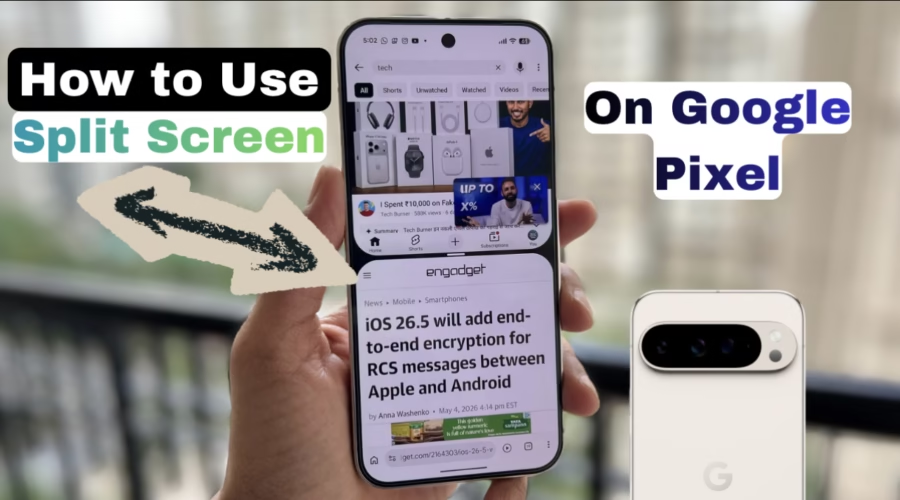
Split screen on Google Pixel lets you use two apps at the same time. It is useful for watching videos while chatting, taking notes during browsing, or multitasking more efficiently.
The feature works on all Pixel phones, including Pixel 6/6a and newer models.
How to Use Split Screen on Google Pixel
1. Make sure your Pixel is updated with the latest software
2. Open the first app you want to use. Go back to Home Screen.
3. Open the second app. Go back to the Home Screen.
4. Now, open the App drawer
- For Gesture Navigation, Swipe up and hold to open the Recent Apps screen.
- For 3-button navigation, tap the square Recent Apps button.
5. Tap the app icon at the top of the app preview.
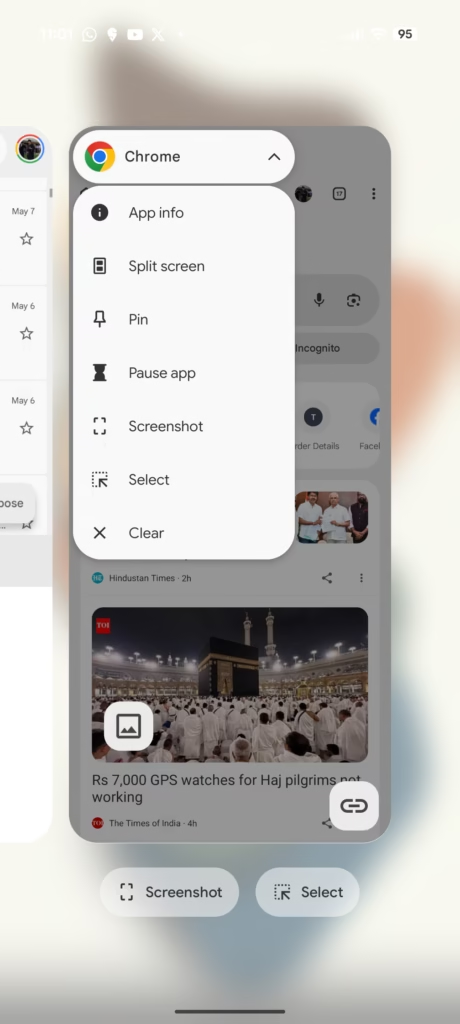
6. Select Split screen.
7. Choose the second app you want to open. Both apps will now run together on the screen. You can drag the divider between the apps to resize them.
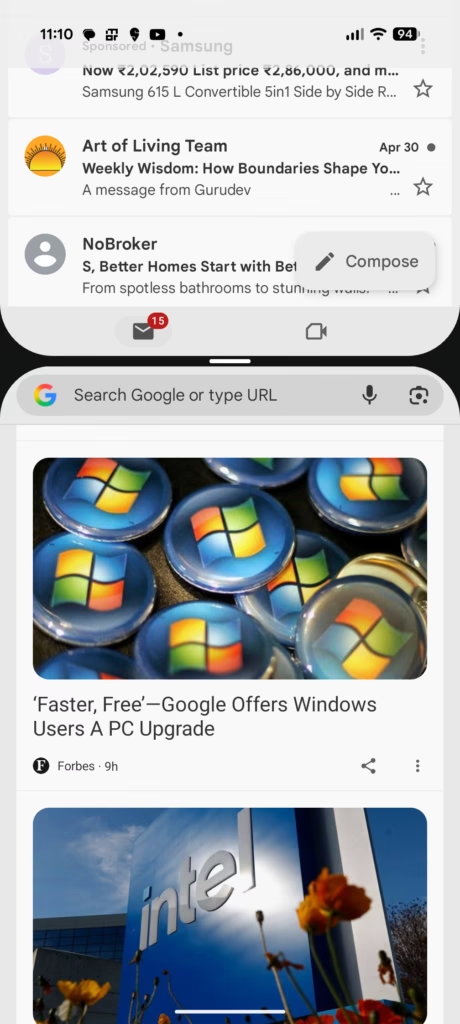
8. Must-Use Pro Tips:
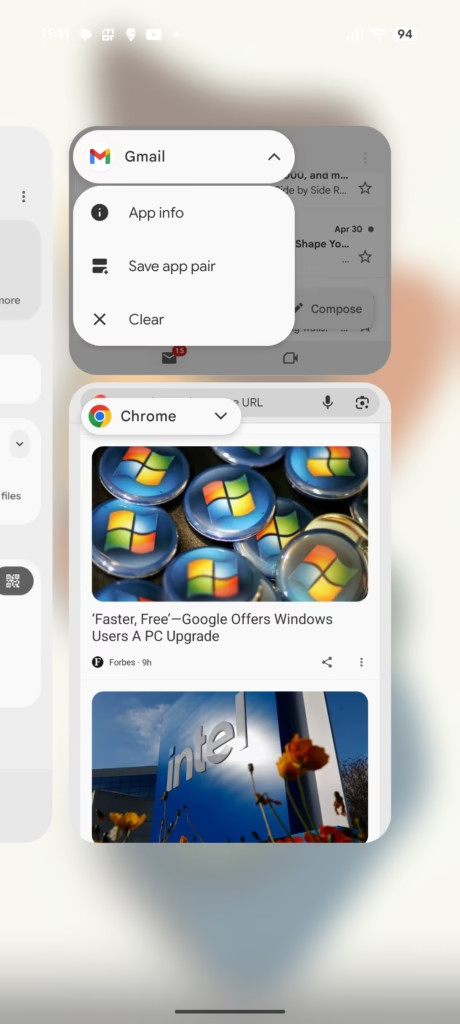
- Save Split Screen: While being in Split Screen, open the App drawer again, tap on the app name, and tap on ‘Save App Pair‘. This will create a split screen shortcut for the 2 apps on your home screen. It will also remember the divider positioning at the time of saving. Extremely useful if you happen to use same 2 apps in split screen very frequently. You can create multiple shortcuts for different combination of apps.
- Screen Orientation: Rotate your phone and you will see split screen working in landscape mode too.
9. How to Exit Split Screen: Drag the center divider fully to the top or bottom of the screen. One app will close and the other will return to full screen mode.
If the split screen doesn’t work, it is most likely due to one of the apps not supporting split screen mode. This commonly happens with certain games, banking apps, camera apps, etc.
Check out our video for step-by-step process –