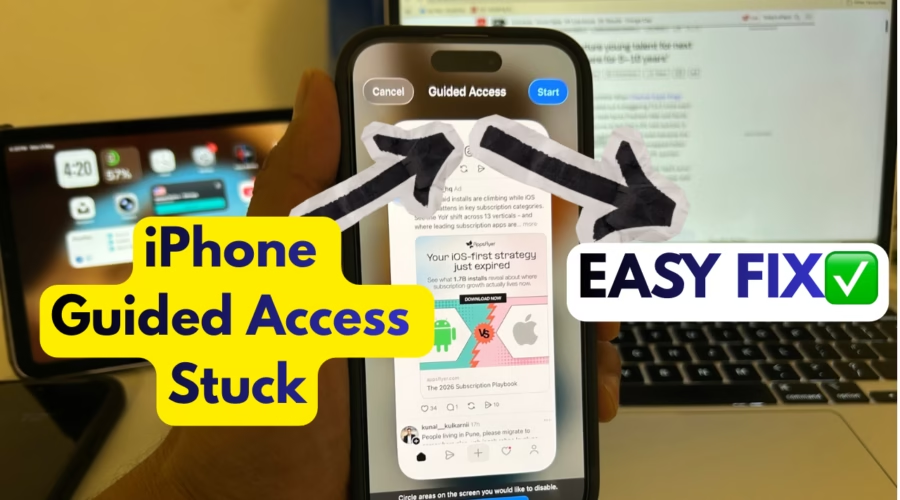
Many iPhone users are running into a frustrating issue where the device gets stuck in Guided Access mode and refuses to exit normally.
In most cases, users try the usual triple-click method on the side button to turn off Guided Access, but nothing happens. Instead, the iPhone may display a message saying “Guided Access Unavailable,” leaving the device seemingly locked.
Fortunately, there is a simple workaround that can quickly fix the problem. And this works for iPad as well.
How to Fix iPhone Guided Access Stuck Issue
If your iPhone is stuck in Guided Access mode, follow these steps carefully:
- Press the Volume Up button once
- Immediately press the Volume Down button once
- Immediately press and hold the Power/Side button
- Keep holding the Power button until the Apple logo appears on the screen.
The iPhone will reboot, and once it turns back on, it should automatically exit Guided Access mode.
This method performs a force restart on the iPhone. Since Guided Access can sometimes become unresponsive due to a temporary iOS glitch, rebooting the device helps reset the system and restore normal functionality.
Supported iPhone & iPad Models
This fix works on all iPhones & iPads without a Home button (e.g. iPhone 11, iPad 10th Gen).
For iPhones & iPads with a Home button (e.g. iPhone SE 2022, iPad 9th Gen), press and hold Home and Power buttons, until Apple logo appears.
For context, Guided Access is commonly used to lock an iPhone into a single app, making it useful for parents, schools, presentations, and public-facing devices. However, when it becomes unresponsive, a force restart is currently one of the quickest ways to regain control of the device.