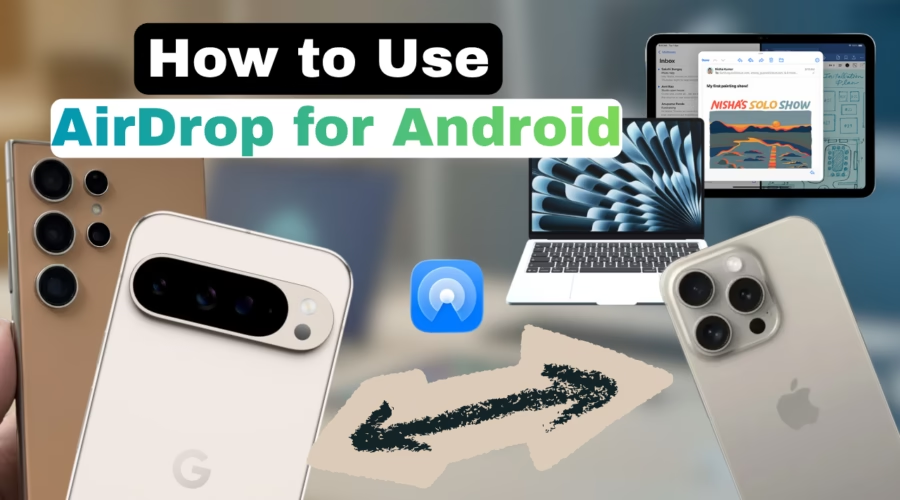
File sharing between Android and iPhone is now possible using Quick Share and AirDrop, without installing any third-party apps. The process works both ways and takes only a few seconds.
If you are looking for ‘AirDrop for Android’ or ‘Quick Share for iPhone’, follow these steps.
Transfer files from Android to iPhone
- On iPhone, enable AirDrop → select “Everyone for 10 minutes.”
- On Android, open the file → tap Share → select Quick Share.
- Wait for the iPhone to appear under nearby devices.
- Tap the iPhone name.
- Accept the file on iPhone → transfer completes within seconds.
Transfer files from iPhone to Android
- On Android, tap & hold on Quick Share in Quick Settings → set visibility to “Everyone for 10 minutes.”
- Alternatively, you can simply open the Quick Share app to make your Android visible
- On iPhone, open the file → tap Share → select AirDrop.
- Wait for the Android device to appear.
- Tap the Android device.
- Accept the file on Android → transfer completes in seconds.
Device Compatibility
Any Apple device with AirDrop is compatible, including iPhone, iPad and Mac (All models). You can follow similar steps, as above, for iPad and Mac.
For Android, as of 23-Apr-2026, following devices are compatible (make sure you have the latest Android update installed and Quick Share app updated)
- Google Pixel 9 Series and Later (including Folds and A-series)
- Samsung Galaxy S26 Series
However, this feature should rollout to many more devices and more brands soon. For devices such as Samsung Galaxy S22-24 series, this feature is already available in Beta.
What can you transfer?
Photos, videos, documents, links, YouTube videos, and social media content can be shared using the same steps. Basically, whatever you could earlier transfer to another Android phone with Quick Share, now you can transfer to Apple devices too.
What Changes for you?
Whether you are an Android user (using Quick Share) or iPhone user (using AirDrop), nothing changes for you except the receiver enabling their phone visibility to ‘Everyone for 10 minutes’.
For a step-by-step video, checkout this YouTube video –